
Inviting Athletes & Staff
Skadi's Edge teams are made up of staff (coaches and assistants who manage the team) and athletes (the archers whose training data you track). This guide walks through inviting both from the coach dashboard.
Before You Start
- You need an existing team. If you don't have one yet, create it from your dashboard first.
- You must be the team owner, or a staff member whose role includes the invite athletes permission.
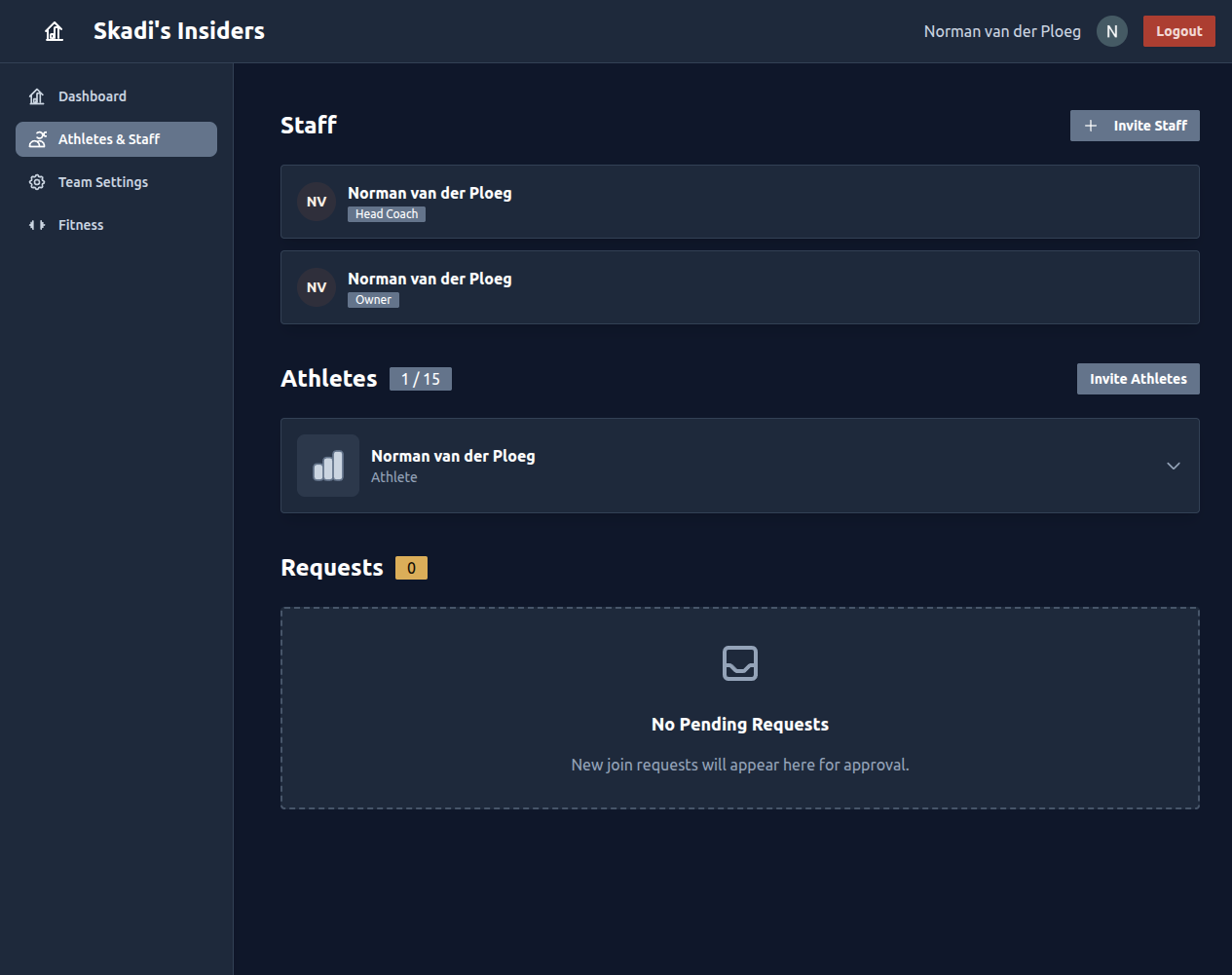
- Everything below happens on the Athletes & Staff page. Open your team, then choose Athletes & Staff from the sidebar.
Inviting Staff
Staff members help you manage the team — they can view athletes, review data, and (depending on their role) invite others. Invite them by email:
- In the Staff section, click Invite Staff.
- Enter one or more email addresses, separated by commas. Each address is validated as you type.
- Click Send Invitation.
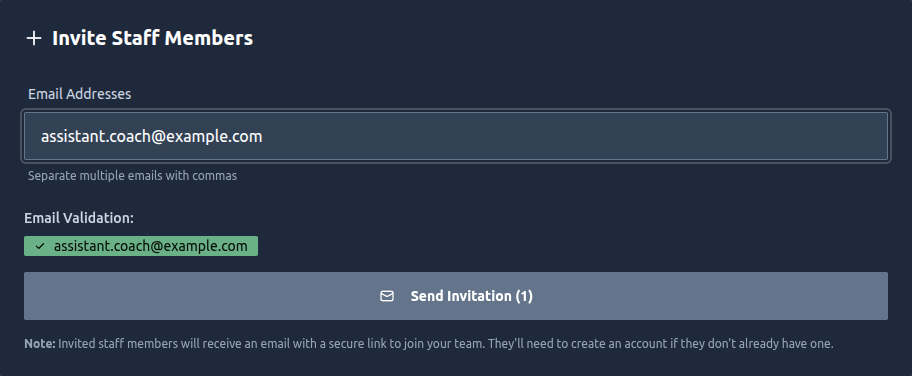
Invited staff receive an email with a secure link to join your team. If they don't already have a Skadi's Edge account, they'll be guided through creating one.
Inviting Athletes
There are two ways to add athletes. Click Invite Athletes in the Athletes section to open the invite window, then pick the approach that fits.
Option 1 — Email Invites
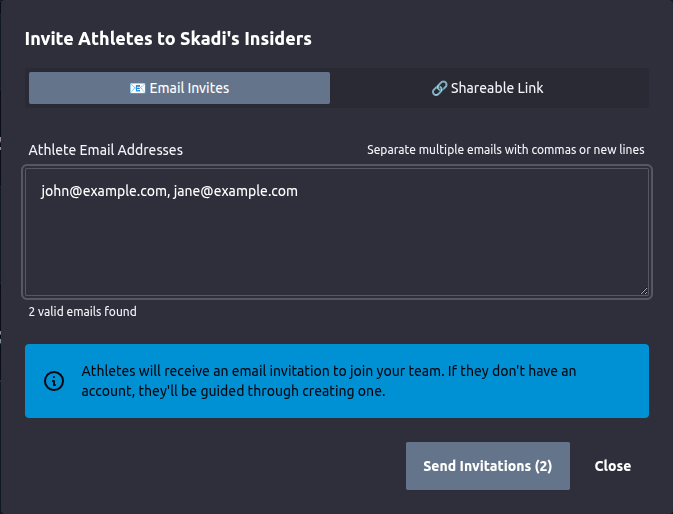
Best when you know your athletes' email addresses. Enter them (separated by commas or new lines) and send. The window tells you how many valid addresses it found before you send.
Option 2 — Shareable Link & QR Code
Best for onboarding a group — at a practice, in a team chat, or on a handout. Switch to the Shareable Link tab to get a link, a QR code, and the team's code and secret. Athletes who use this link join directly, without needing to be approved.
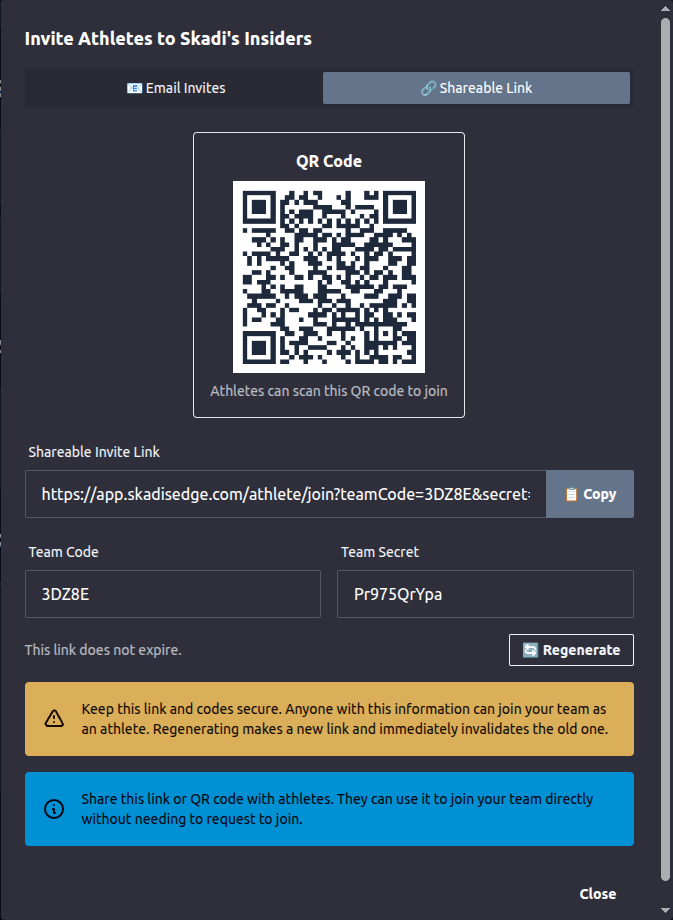
⚠️ Keep this link and codes private. Anyone who has them can join your team as an athlete. If a link is shared too widely or you want to cut off access, click Regenerate — this creates a fresh link and immediately invalidates the old one.
Approving Join Requests
Athletes can also ask to join using your team code on their own. When they do, their request appears in the Requests section at the bottom of the Athletes & Staff page.
- Each request shows the athlete's name and email. Review it, then click Accept to add them to the team, or Deny to dismiss it.
- Accepted athletes move into your Athletes list and start counting toward your plan's seat limit.
Invites sent by email or shareable link don't need approval here — requests only appear when an athlete joins by team code on their own.
A Note on Seats
The badge next to the Athletes heading (for example, 1 / 15)
shows how many athlete seats you're using against your plan's limit.
If you reach the limit, the Invite Athletes button
is disabled until you free up a seat or upgrade your plan.
Need Help?
If invitations aren't arriving or you can't add someone:
- Ask the invitee to check their spam or junk folder.
- Confirm you still have an available seat (see the badge next to Athletes).
- Contact support if problems persist.