
Fitness Tools
BetaThe Fitness tools are in beta. They work today, but the interface and data model are still evolving — expect changes, and tell us what you'd like to see. Programs you build now will carry forward.
Fitness is an add-on module. It isn't part of the base Personal or Team plan — it's purchased separately and adds to whichever plan your team is on. If the Fitness section is locked, add it from your team's Subscriptions page. See pricing for details.
The Fitness tools let you build strength & conditioning programs for your team and push them to your athletes' app. The whole workflow centres on one screen — the Phase Builder. You almost never need to leave it.
The Building Blocks
Four ideas, from largest to smallest:
- Phase — a training program, made of weeks. This is what you assign to athletes on a schedule (e.g. a 3-week pre-season block).
- Activity — one session's worth of work inside a week. Activities come in four types: Strength, Recovery, Cardio / SAB, and Intervals.
- Complex — a group of exercises performed together for a number of sets (a superset or circuit). Strength and Recovery activities are built from complexes.
- Exercise — a single movement, drawn from a library of 800+ built-in exercises (plus any your team adds).
Finding the Phase Builder
Open your team and choose Fitness from the sidebar, then the Phases tab. This is the home of every program you've built. Click + New Phase to start one (you'll name it and pick a starting number of weeks), or Open → an existing phase to edit it.
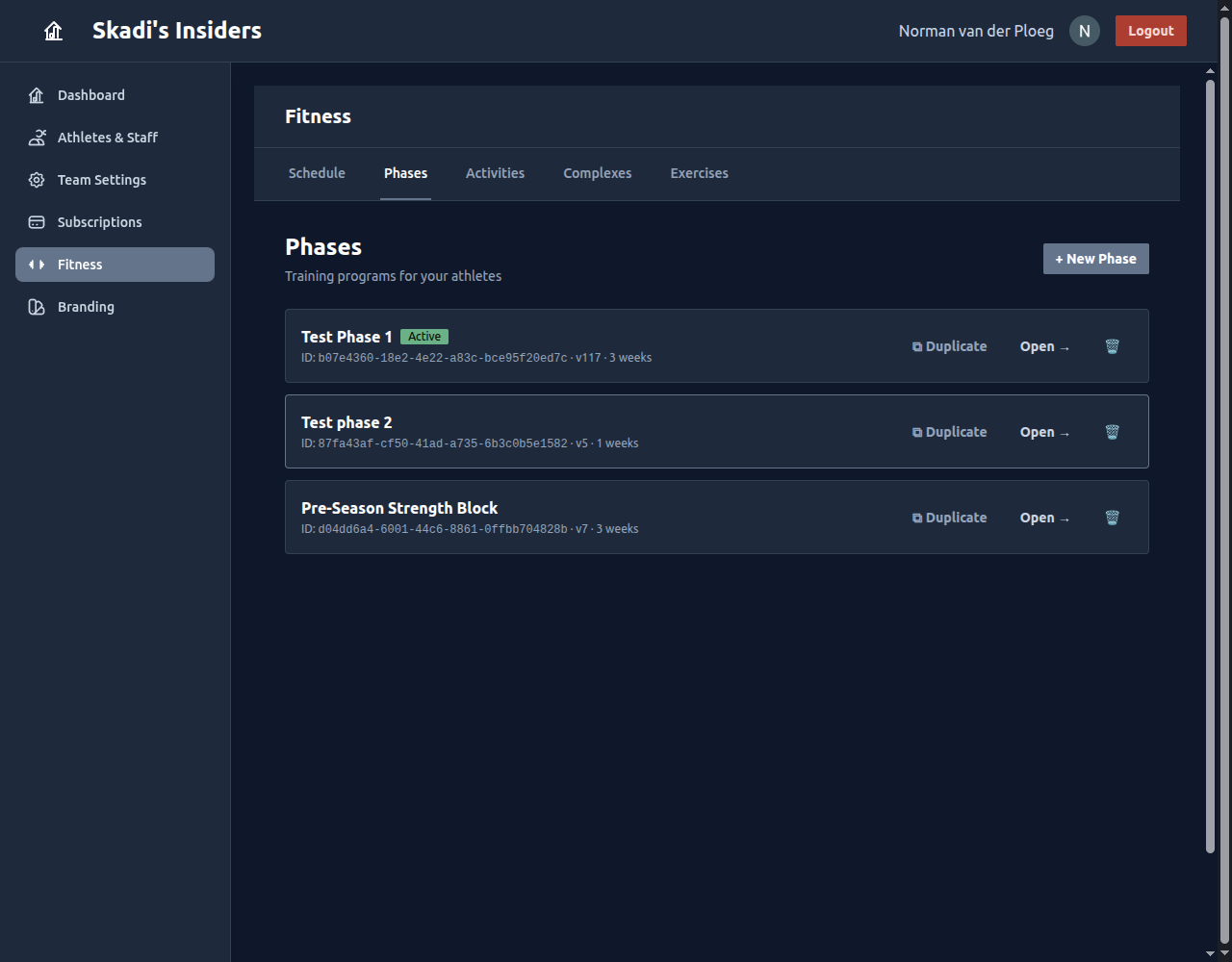
The other tabs — Activities, Complexes, and Exercises — are your reusable library. They're handy, but optional: you can build a whole phase without ever opening them. More on that below.
Build Everything in the Builder
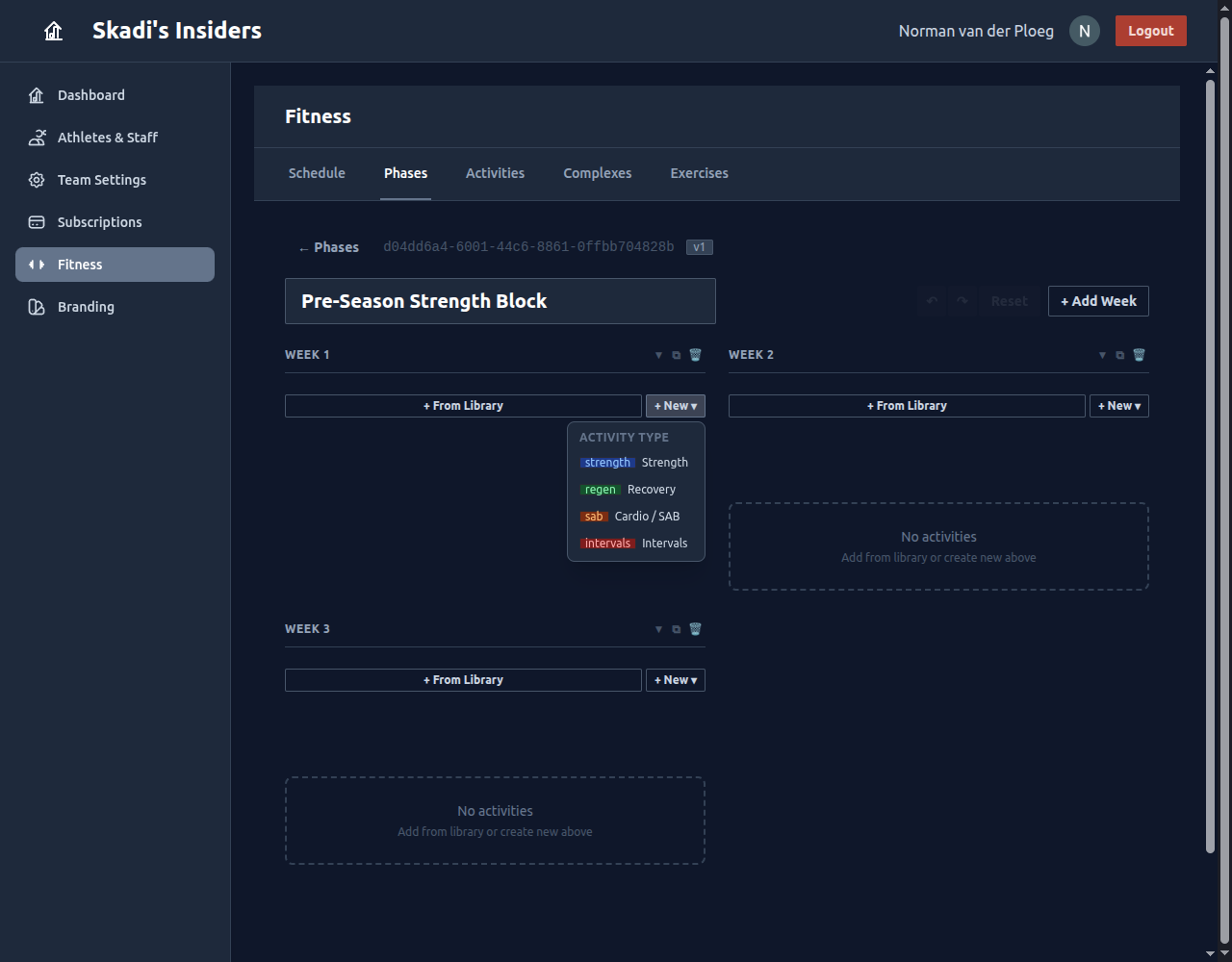
A phase opens as a grid of weeks. Inside each week you add activities, and everything you need is right there — no jumping between screens.
Add an activity
Each week has two add buttons. + New ▾ creates a fresh activity of the type you choose. + From Library drops in a copy of one you've saved before (covered in the next section).
Add complexes and exercises
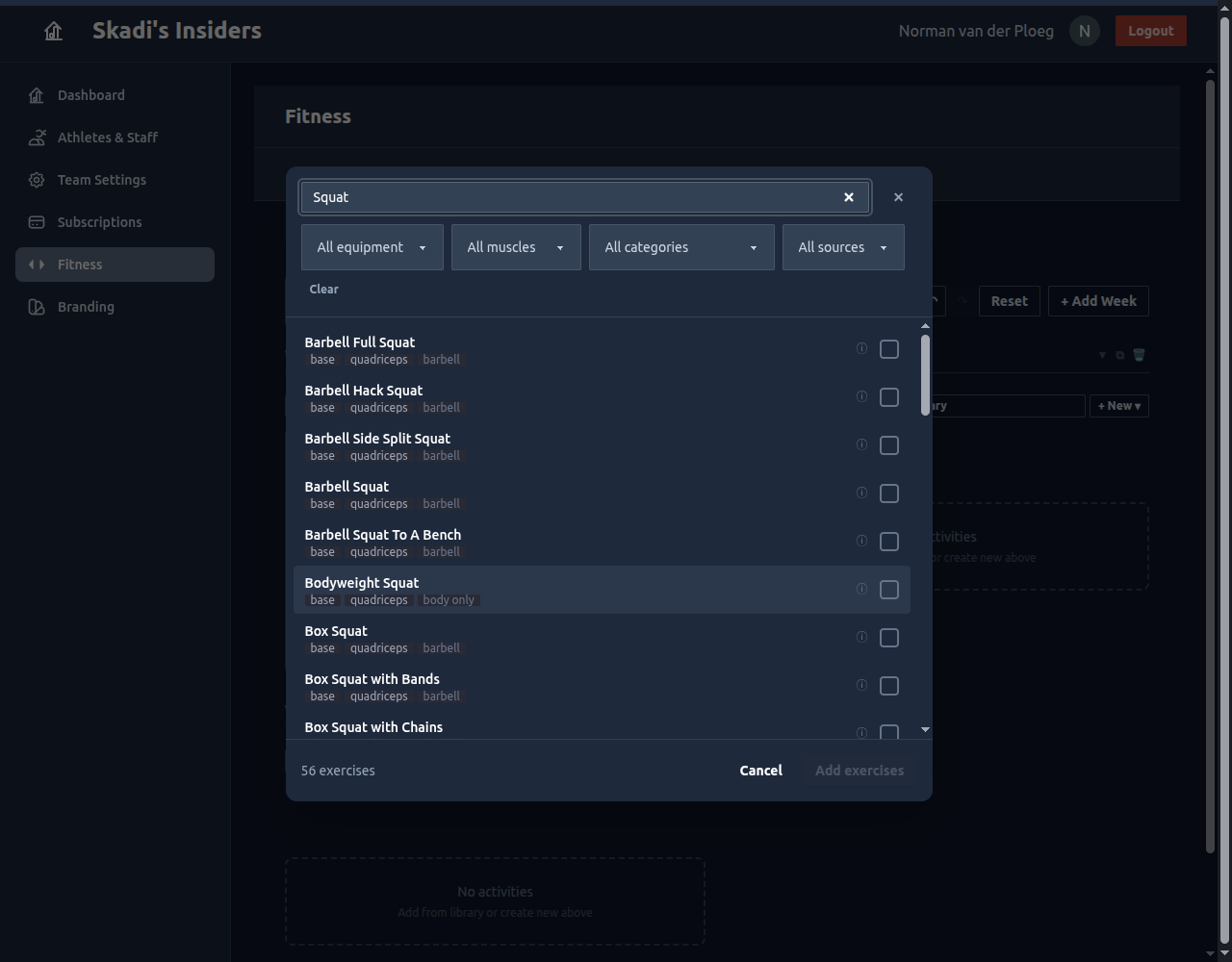
For a Strength or Recovery activity, add a complex with + New Complex, give it a name and a set count, then + Add exercises. The exercise picker searches the whole library and filters by equipment, muscle, category, and source.
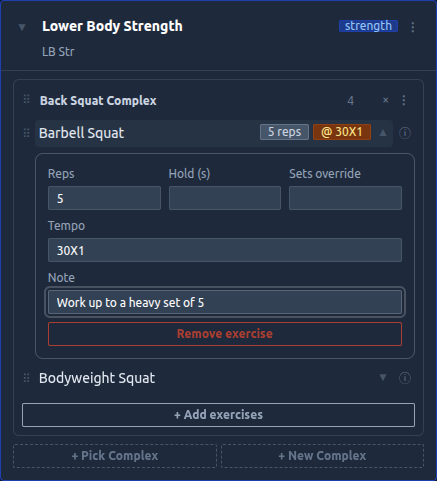
Each exercise expands to set reps, hold time, a per-exercise set override, tempo, and a coaching note. Drag the ⠿ handles to reorder exercises within a complex, or complexes within an activity.
Cardio / SAB and Intervals activities work the same way, with their own fields (duration, work/rest intervals) plus an optional warmup. Everything saves automatically as you go — watch the save indicator near the phase title, and use Undo / Reset if you change your mind.
Library Items Are Copied, Not Linked
This is the most important thing to understand about the Fitness tools. When you pull an activity or complex in from the library — with + From Library or + Pick Complex — Skadi's Edge drops a copy into your phase. It does not create a live link back to the library item.
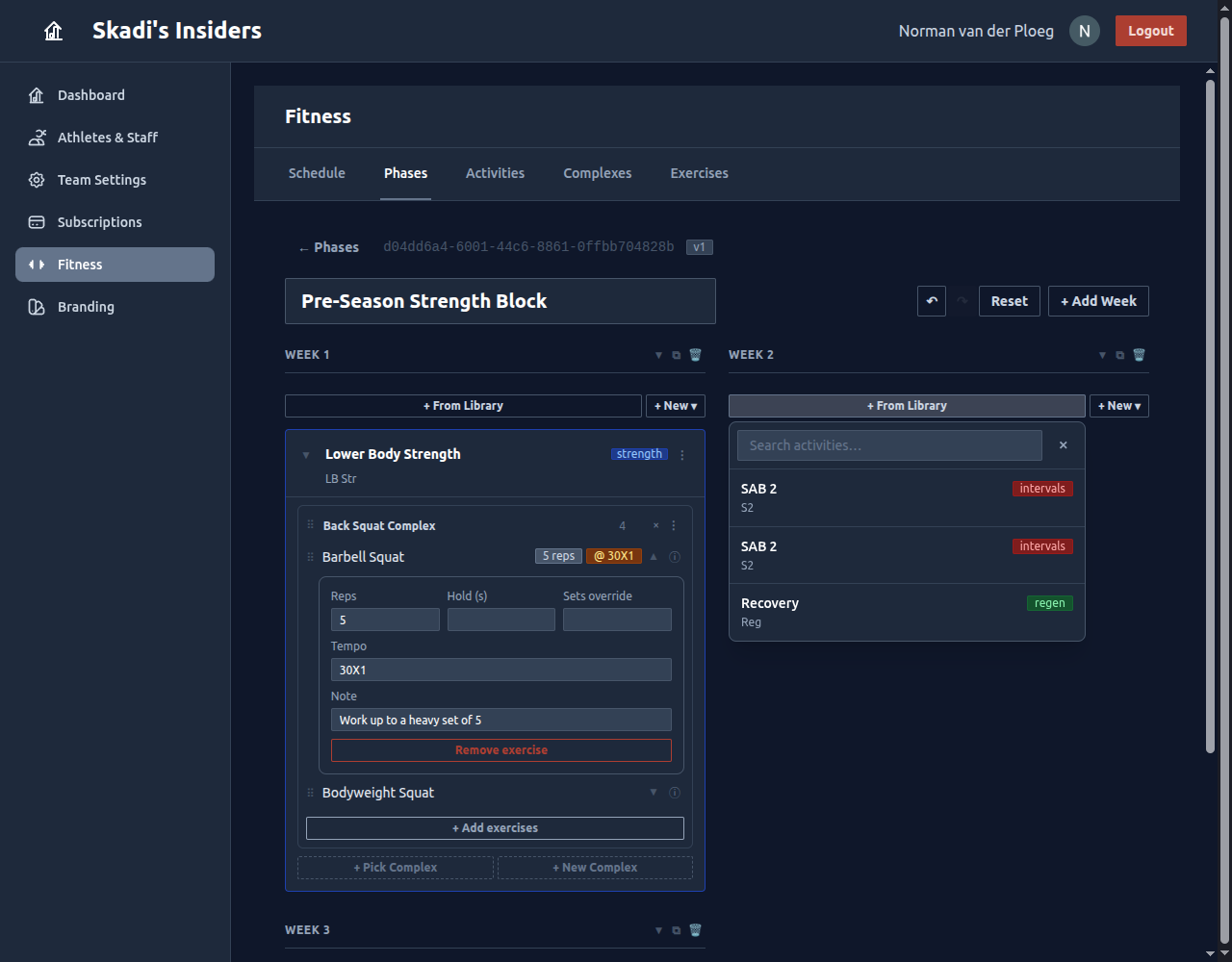
What that means in practice:
- Editing the copy never touches the library. Tweak the sets, swap an exercise, rewrite a note — the original template stays exactly as it was.
- Editing the library item never touches your phase. Copies already placed in a phase keep the values they had when you added them.
- Each placement is independent. Drop the same complex into three weeks and you can make each one progress differently.
So the library is a starting point, not a single source of truth. Updating a library template will not ripple out to phases that already use it — you'd re-add it (or edit each phase) to pick up the change.
Saving Back to the Library
Build something in the Phase Builder that you'll want again? Save it as a reusable template without leaving the screen. Open the ⋮ menu on any activity (or complex) and choose Save as Template →. It's added to your library, ready to drop into future phases — again, as independent copies.
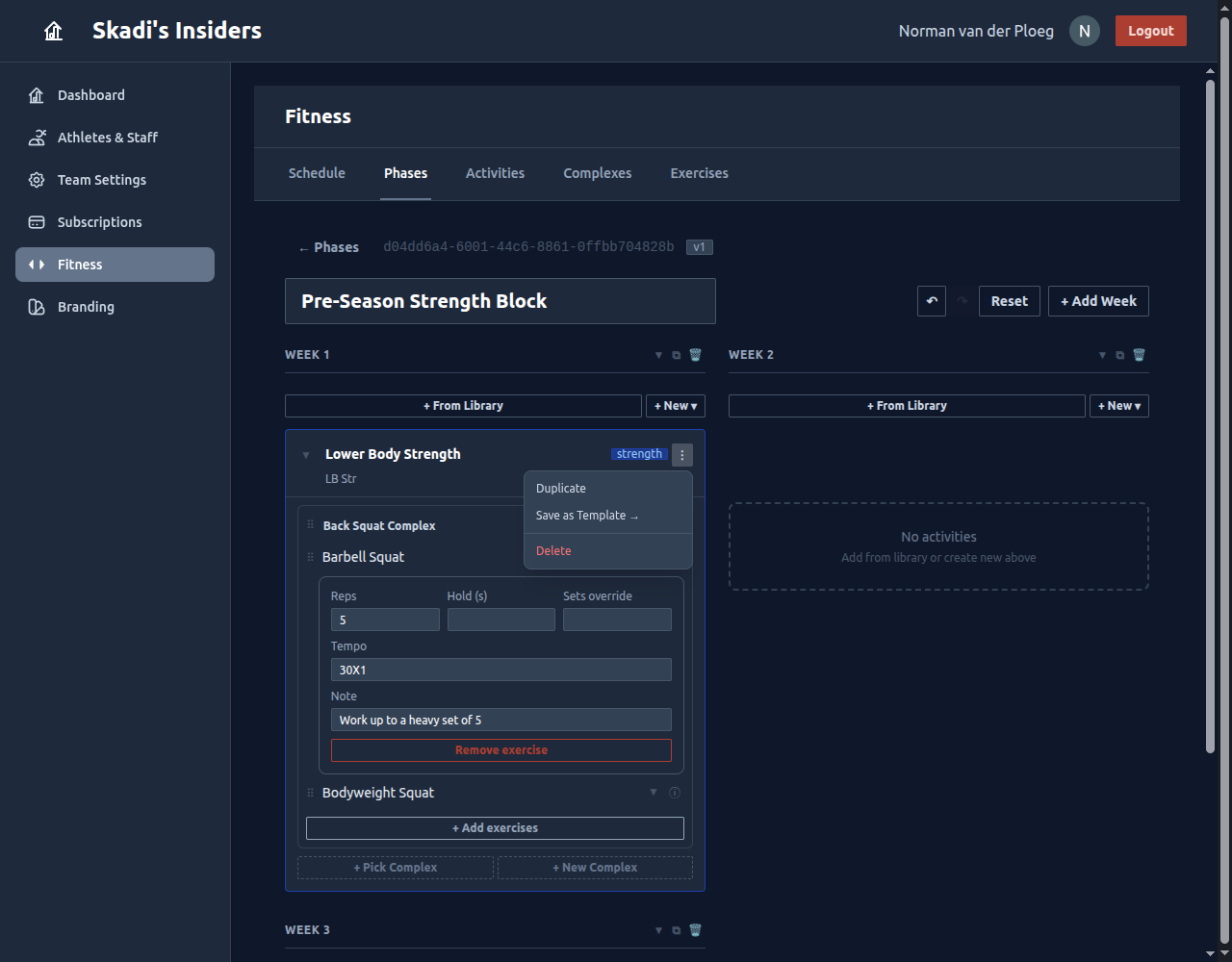
That's the whole loop: build in the Phase Builder, optionally save pieces to the library, and pull copies back whenever you need them.
Getting It to Athletes
When a phase is ready, head to the Schedule tab and assign it a start date. From that date, the program flows to your athletes' app week by week. You can schedule several phases back to back, and Skadi's Edge will warn you about overlaps or duplicate start dates.